
What you need before setup
You need two registered WhatsApp numbers and access to the primary phones to approve the computer as a linked device. A second web instance does not create a new number. If the work number belongs to your company, agree in advance who manages linked devices and who may reply from a computer.
- Check that both accounts work on their phones.
- Remove old, unused linked devices only when you reach the limit.
- Never forward a login QR code to colleagues or support.
See the setup in Centrio
Screenshots show Centrio 3.5.1 with its Russian interface. Service names and the placement of the main controls help you follow the same steps in your language.
Open the service catalog
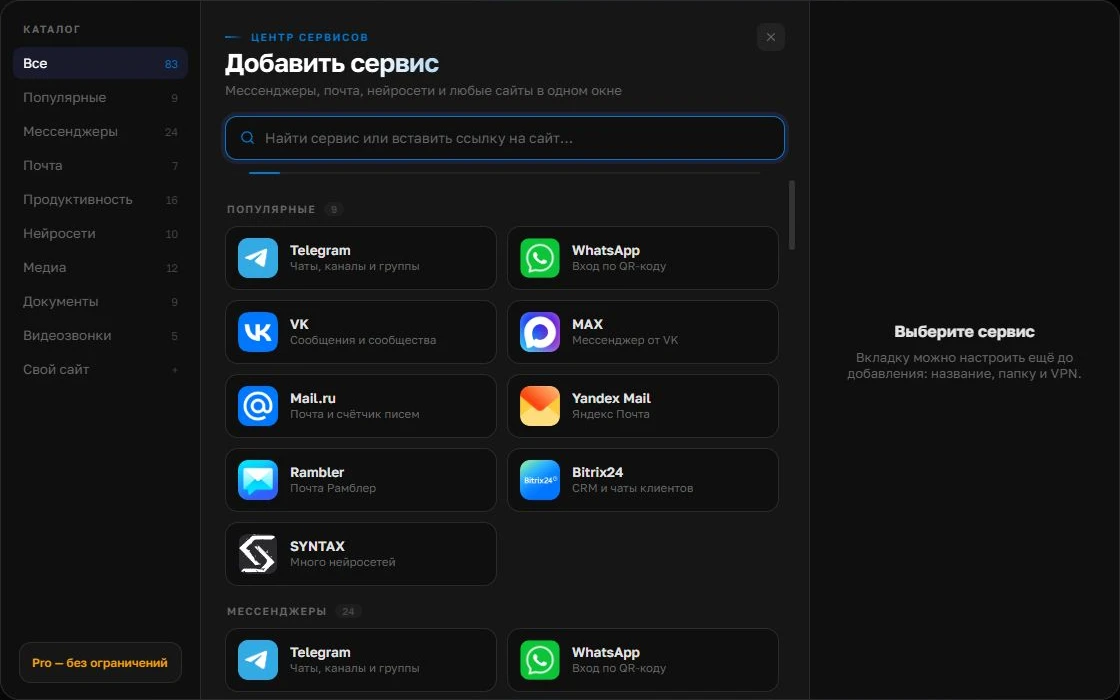
Click “+” in the left sidebar. Search for your messenger or email service and select its card.
Open full-size screenshot ↗Give the account a clear name
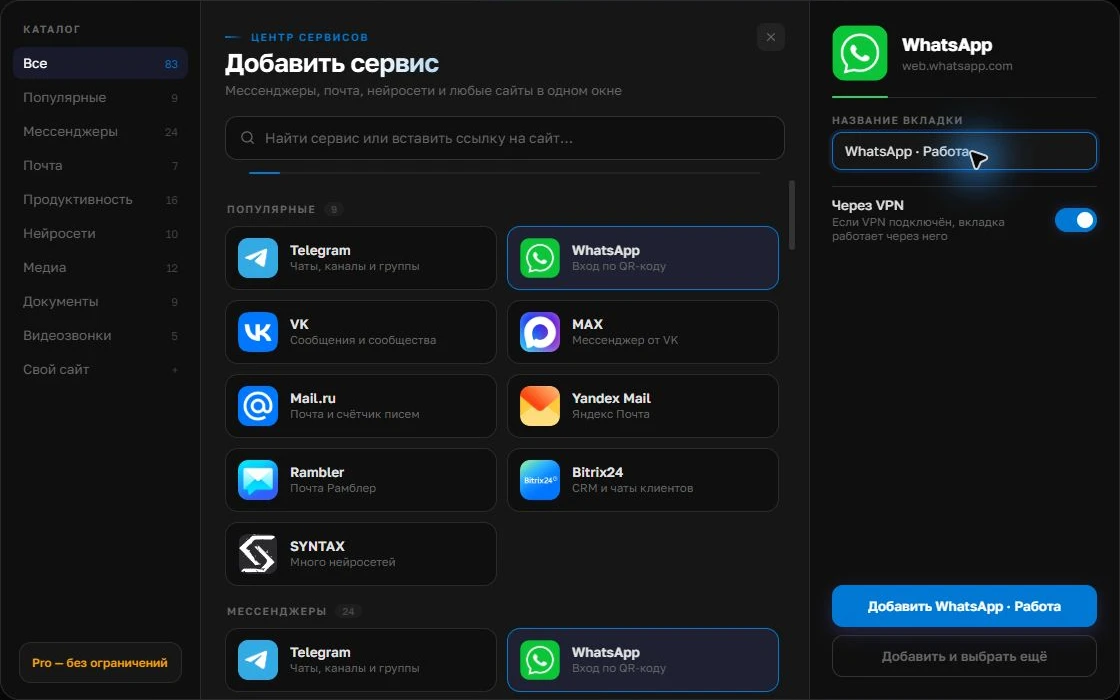
On the right, choose a name you will recognize, such as “Work” or a project name. Add the service, then sign in through its usual website.
Open full-size screenshot ↗For a second account, add the service again. Sign in separately and verify the number or profile before your first reply. Adjust notifications to suit your work.
Build your own workspaceThree ways to open both accounts
You can use two browser profiles: each has its own cookies, but you switch between windows. Another option is the official desktop client alongside WhatsApp Web, if your system supports that combination. In Centrio, add WhatsApp twice: each instance has an independent login, a clear name and a place in the same sidebar.
| Method | When it fits |
|---|---|
| Browser profiles | Occasional switching and different bookmark collections |
| App + web | Just two accounts, with no other services |
| Centrio | Two WhatsApp accounts alongside Telegram, MAX and email |
Signing in through Centrio
Add the first WhatsApp, name it “Personal” and follow the standard phone linking process. Then add a second instance and link your work number. Once chats load, check the avatar and number, and send a harmless test message to yourself or an agreed contact. A tab name does not prove you are signed into the right account.
- Link your personal account.
- Add the second WhatsApp as a separate service.
- Check the number and notifications in each instance.
Which plan you need and what not to expect
Two instances use two of the three slots in Centrio’s Free plan; the third can hold another service. If you need more accounts, folders or split screen, compare Pro on the pricing page. Centrio displays the standard WhatsApp web interface: it does not merge conversations, bypass phone number requirements or provide a shared agent queue. Assigning customer enquiries to staff requires a separate system.
Frequently asked questions
Can I use one number in two tabs at once?
You can link devices to one account, but they will use the same number, not two distinct WhatsApp accounts.
Are two WhatsApp accounts included in Free?
Yes. Two separate instances use two of the three available slots. Check plan terms before installing.
Sources and verification
Prepared by the Centrio editorial team. Below are official service pages and Centrio documentation. Feature availability depends on the app version and operating system.