
Start by listing your actual accounts
Record every instance separately: two WhatsApp accounts mean two sign-ins, not one item on your list. Note which services are in Centrio’s catalog and which you would need to add using a custom address in Pro. Free is limited to three catalog services; if your setup needs more, calculate its cost from the start.
See the setup in Centrio
Screenshots show Centrio 3.5.1 with its Russian interface. Service names and the placement of the main controls help you follow the same steps in your language.
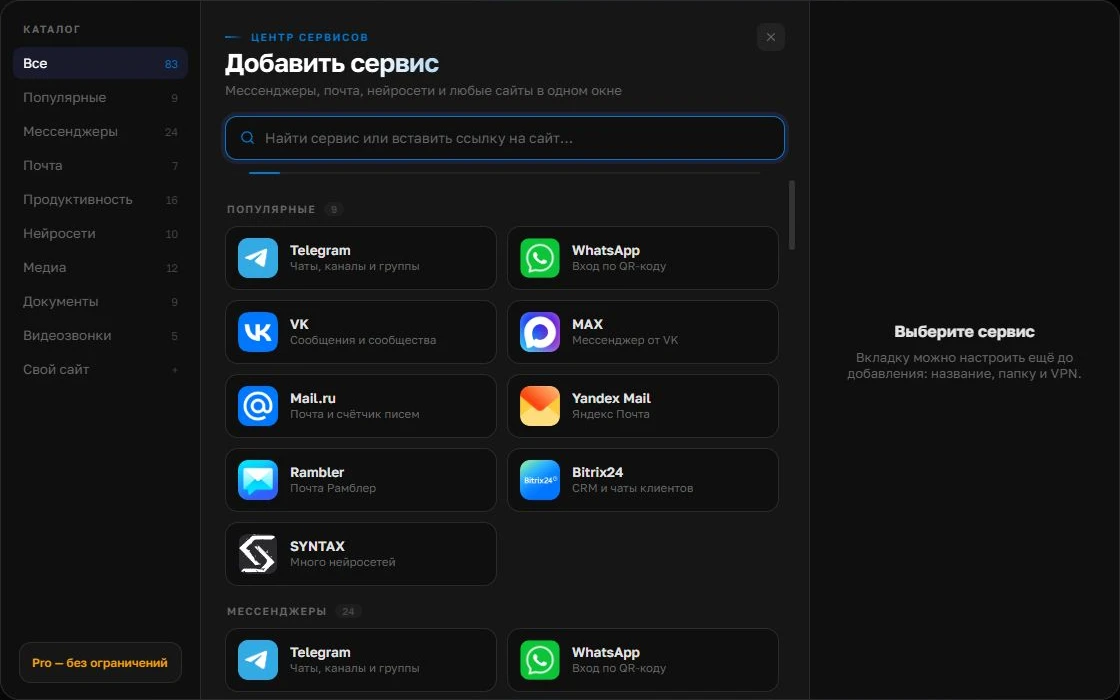
Open the service catalog
Click “+” in the left sidebar. Search for your messenger or email service and select its card.
Open full-size screenshot ↗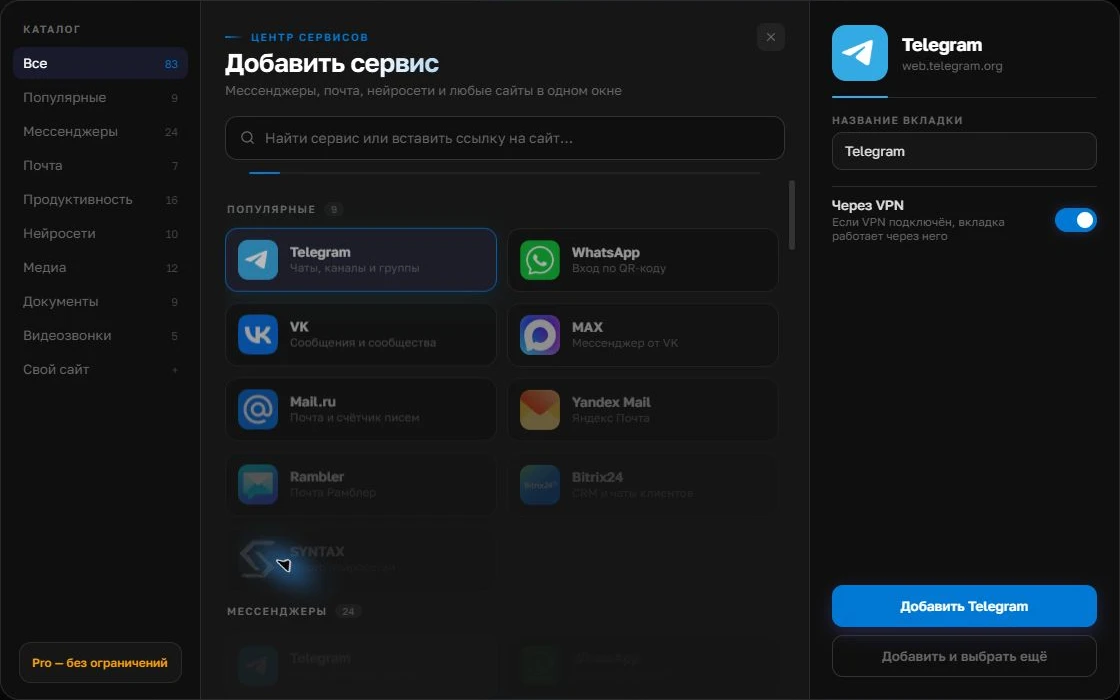
Give the account a clear name
On the right, choose a name you will recognize, such as “Work” or a project name. Add the service, then sign in through its usual website.
Open full-size screenshot ↗For a second account, add the service again. Sign in separately and verify the number or profile before your first reply. Adjust notifications to suit your work.
Build your own workspaceRun a one-day trial
Install Centrio and sign in to your three most important services. Check notifications after restarting, attachments, search, links and behavior on your operating system. A service’s web version may differ from its desktop app. Keep Singlebox installed until you know your normal day runs without workarounds.
- Sign in to your main accounts.
- Check incoming messages and send a file.
- Compare how often you switch and how useful the overview is.
Where Centrio can help
Centrio offers a Russian-language interface, a catalog of familiar services, separate sessions, a PIN, notifications and a basic plan with no time limit. Pro adds folders, custom websites, split screen and more services. These features are valuable only when they fit your workflow: if you use just two websites, extra organization may be unnecessary.
When staying makes more sense
If Singlebox already handles a specific feature or corporate sign-in that fails in Centrio’s web version, a new interface alone is no reason to move. Compare both products’ current terms and confirm compatibility with every critical service. Centrio does not import active sessions from other apps: you will need to sign in normally.
Frequently asked questions
Will my Singlebox sign-ins transfer automatically?
No. Sign in to each service using its normal process.
Can I try Centrio for free?
Yes. Free includes up to three catalog services; check the pricing page for what Pro includes.
Sources and verification
Prepared by the Centrio editorial team. Below are official service pages and Centrio documentation. Feature availability depends on the app version and operating system.