
Start with the computer account
If employees take turns using one PC, give each a separate operating system account where possible. Sharing a system login means sharing access to local data, history and apps. Configure automatic screen locking and a login password. Centrio’s PIN helps lock its window but does not create independent user profiles on the device.
See the setup in Centrio
Screenshots show Centrio 3.5.1 with its Russian interface. Service names and the placement of the main controls help you follow the same steps in your language.
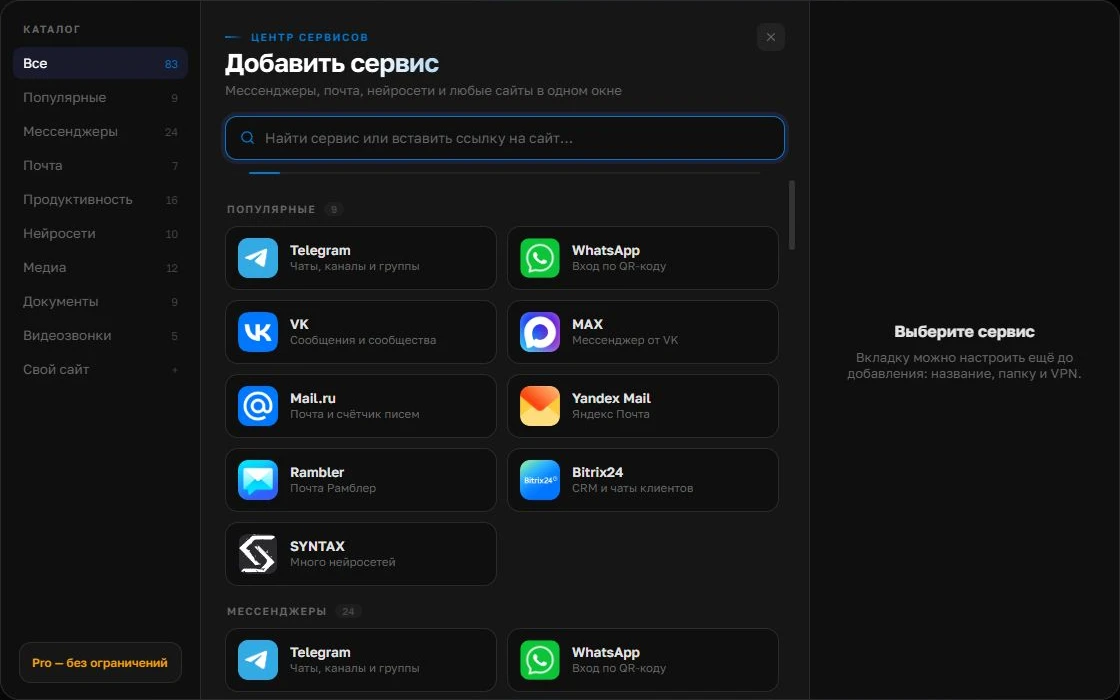
Open the service catalog
Click “+” in the left sidebar. Search for your messenger or email service and select its card.
Open full-size screenshot ↗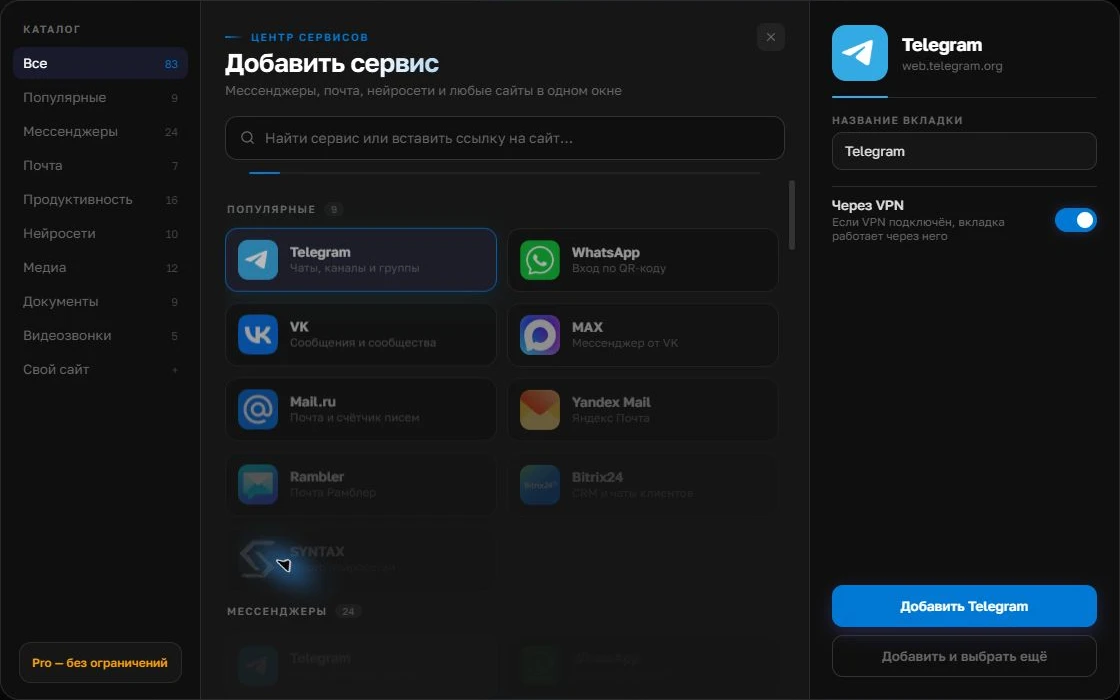
Give the account a clear name
On the right, choose a name you will recognize, such as “Work” or a project name. Add the service, then sign in through its usual website.
Open full-size screenshot ↗For a second account, add the service again. Sign in separately and verify the number or profile before your first reply. Adjust notifications to suit your work.
Build your own workspaceCheck linked devices
After finishing work, open the security settings in Telegram, WhatsApp and other critical services. Make sure every linked device is recognized and unwanted sessions can be ended. Avoid clearing all data without preparation: this could sign colleagues out of work accounts. The number’s owner and the team should agree on the sign-out procedure.
Set up Centrio’s local protection
Enable the PIN and automatic lock, then test them after minimizing the app and leaving it idle. With permission, ask a colleague to try opening the window without the code. Separately check whether message text remains visible in notifications on the operating system’s lock screen. Hide it in system settings if necessary.
- Protect operating system sign-in.
- Enable the PIN and timeout.
- Check notifications and the device list.
Set a shift-handover rule
Document which accounts stay open for the next employee and who is responsible for them. End personal access during handover. If you use a shared corporate number, permissions, an audit log and an access-revocation procedure are needed in the service itself or a specialized system. A personal aggregator window does not become an employee management system.
Frequently asked questions
Is Centrio’s PIN enough for a shared PC?
No. You also need operating system protection, linked-device management and account access rules.
Will signing out of a web session delete chats?
Cloud services usually retain history in the accounts themselves, but details vary by platform. Check the official help before signing out.
Sources and verification
Prepared by the Centrio editorial team. Below are official service pages and Centrio documentation. Feature availability depends on the app version and operating system.